How To Merge Projects
Move or copy tasks from one project to another — the practical way to carry feedback from staging through to live without losing the history.
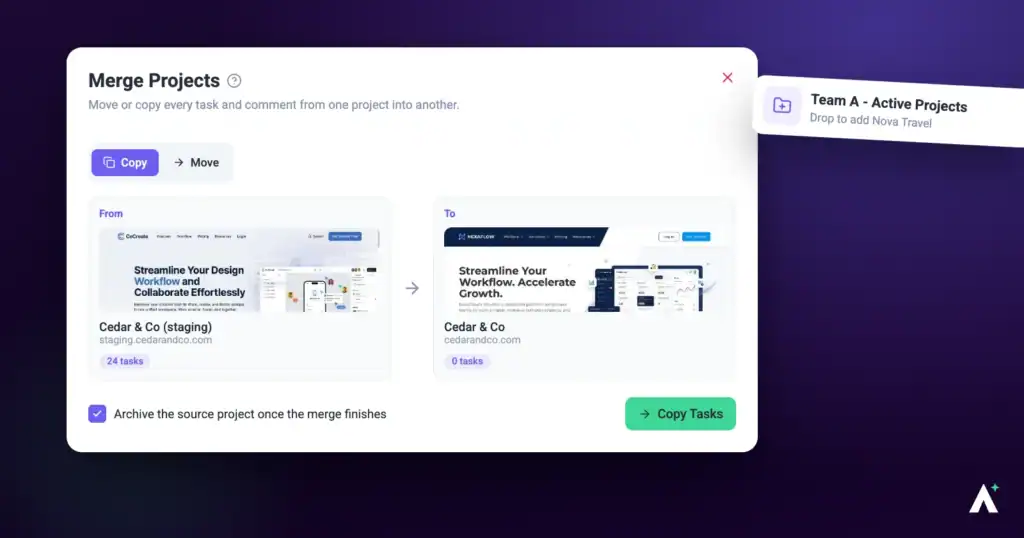
Agencies routinely run the same website more than once in Atarim — a staging project, a development project, and the live site. Feedback accumulates on whichever one the client was looking at, and ends up scattered.
The merge tool solves that by moving or copying tasks from one project into another, rewriting each task so it points at the destination site. Atarim describes it as ideal for moving tasks from staging to development sites, and then on to live.
Who this is for
Merging is a paid feature, and it is also permission-gated. The menu item appears greyed with a plan badge if your plan does not include it, and does not appear at all if your role lacks the merge permission.
Selecting a locked Merge Sites item opens an upgrade panel describing the feature as combining tasks from staging and live URLs into one project, keeping historical feedback while avoiding duplication.
Copy or move — choosing the right mode
The tool offers two modes, and the difference matters. Choose before you select your projects.
| Mode | What happens to the source | Use it when |
|---|---|---|
| Copy Tasks | Tasks stay where they are. Duplicates are created on the destination, along with their comments. | You want the feedback in both places — for example carrying staging feedback to live while keeping the staging record intact. Tags, attachments, and subtasks are not duplicated. |
| Move Tasks | Tasks and pages are both transferred. The source project remains but is left empty. | You are retiring the source project, or consolidating a duplicate you no longer need. |
Opening the merge tool
Instructions:
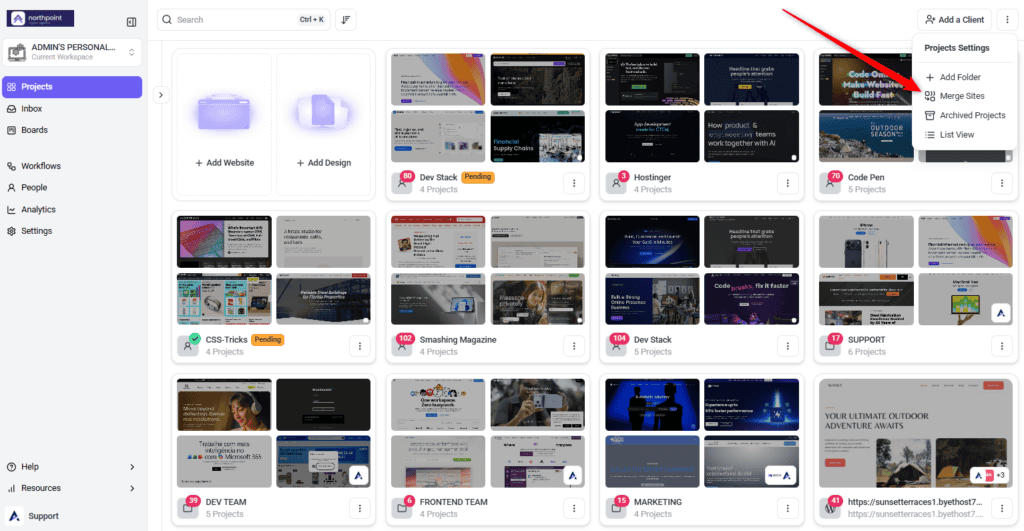
- Go to Projects and open the actions menu in the top bar. The menu lists project-level actions including Merge Sites.
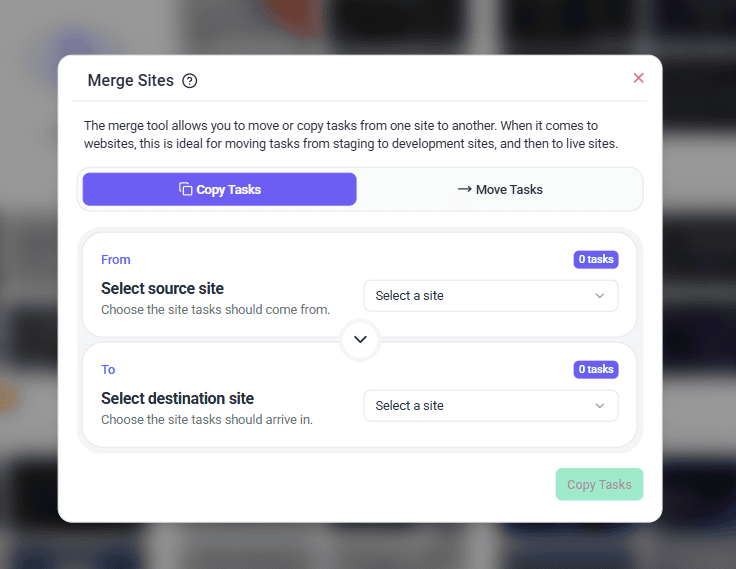
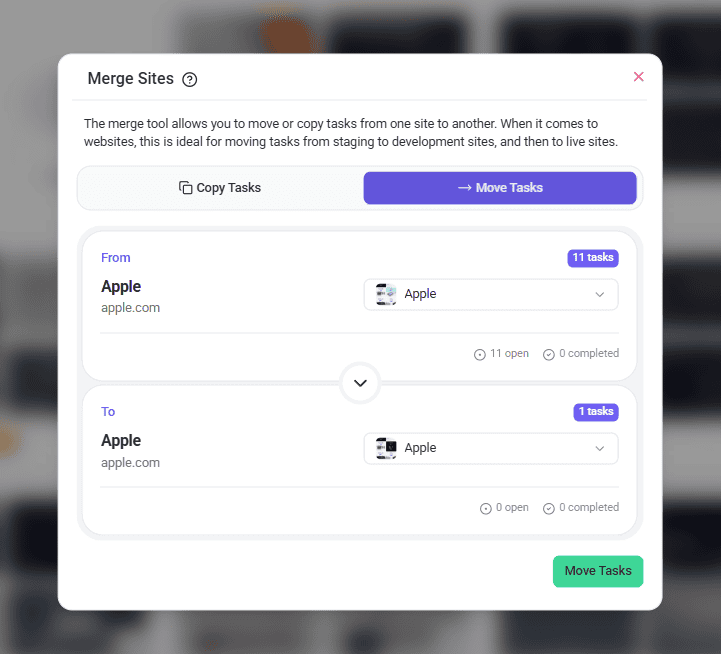
- Select Merge Sites. The modal opens, with the mode buttons at the top, the From and To selectors below, and a help icon linking back to this article.
Copying tasks to another project
Use this when you want the feedback in both places — for example carrying a round of staging feedback onto the live project while keeping the staging record intact.
Instructions:
- In the Merge Sites modal, select Copy Tasks. The Copy option is highlighted, and the action button at the bottom right reads Copy Tasks.
- Open the From selector and choose the project the tasks are currently on. Projects load in batches as you scroll, showing Loading projects while they fetch. The source must contain at least one task.
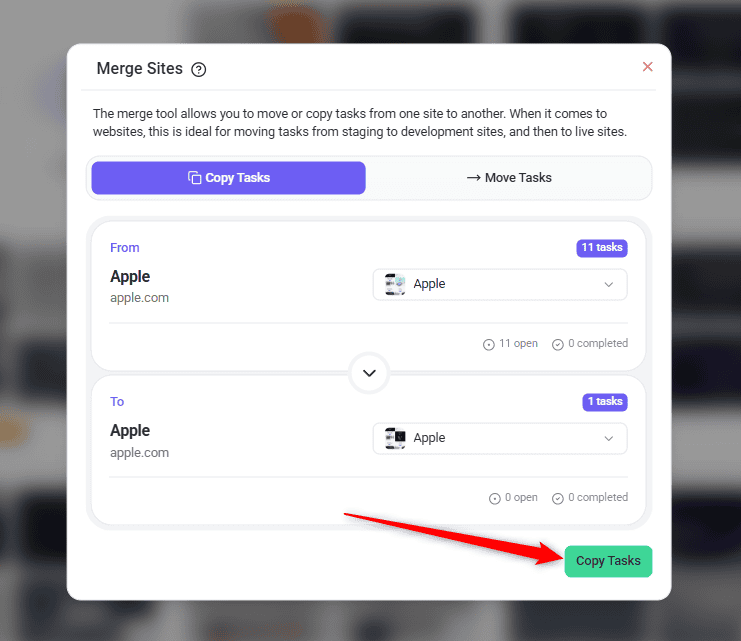
- Open the To selector beneath the arrow and choose the project you want the copies to land on. The action button becomes available once both are selected.
- Check the direction of the arrow between the two cards, then select Copy Tasks. A confirmation reads Sites merged successfully.
- Open the destination project and spot-check a few tasks. Copied tasks carry their comments and now point at the destination site.
What to expect after copying
- The source project is untouched. Every task stays exactly where it was, with everything attached to it.
- The destination gains duplicates of the tasks, each with its comments.
- Tags, attachments, subtasks, and logged time are not duplicated. Copies arrive with the task text and its conversation only.
- Pages are copied too, whether or not a matching page is already on the destination.
- Task page titles are rewritten to the destination project’s name.
- Running it twice copies everything twice. There is no duplicate check — a second copy recreates every task and page again, alongside the first set.
Moving tasks to another project
Use this when you are consolidating — retiring a staging project, or cleaning up a duplicate you no longer need.
Instructions:
- Before you start, confirm you no longer need the source project as a separate record. A move cannot be reversed in one action, so this is the point to change your mind.
- In the Merge Sites modal, select Move Tasks. The Move option is highlighted, and the action button at the bottom right reads Move Tasks.
- Open the From selector and choose the project you are emptying.
- Open the To selector and choose the project everything should end up on. The action button becomes available once both are selected.
- Read the two cards once more, top to bottom, then select Move Tasks. A confirmation reads Sites merged successfully.
- If you no longer need the empty source project, delete it separately. Merging never deletes anything, so the source remains on your projects list until you remove it.
What to expect after moving
- The source project is left empty. Both its tasks and its pages transfer to the destination.
- Everything attached to each task comes with it — comments, tags, attachments, subtasks, and logged time — because the original task is transferred rather than recreated.
- Task page titles are rewritten to the destination project’s name.
- Task URLs are rewritten so the source domain is replaced with the destination domain.
- The source project still exists on your projects list until you delete it yourself.
What transfers, and what changes
Merging does more than reassign tasks. Each transferred task is rewritten to belong to the destination.
| What | What happens |
|---|---|
| Tasks | Moved or copied to the destination project. |
| Comments | Carried across in both modes, so the feedback history travels with the work. |
| Pages | Moved with the tasks in Move mode. In Copy mode every page is duplicated to the destination, whether or not a matching page is already there. |
| Tags, attachments, subtasks, and time entries | Follow the task when moving. Not carried across when copying. |
| Task page titles | Rewritten to the destination project’s name. |
| Task URLs | Rewritten so the source domain is replaced with the destination domain — this is what makes the tasks open correctly on the new site. |
| The source project | Always remains. It is never deleted, whichever mode you choose — but after a move it is left empty. |
Known limitations
- There is no undo. Neither a move nor a copy can be reversed from the dashboard.
- You cannot choose which tasks transfer. The tool works on the whole project — there is no way to select a subset.
- Copying does not duplicate tags, attachments, subtasks, or logged time. Only the task and its comments are recreated.
- Nothing is deleted. If your goal is to remove the source project, you must delete it separately afterwards.
- Both projects must be in the same workspace. There is no cross-workspace merge.
FAQs
Does merging delete the source project?
No. The source project always remains. With Move Tasks it ends up with no tasks, but the project itself and its pages stay in place — delete it separately if that is what you want.
Can I undo a merge?
No. There is no reverse action. A move would have to be moved back manually, and copied tasks would have to be deleted individually.
Do comments come across too?
Yes, in both modes. Comments travel with their task, so the feedback history is preserved.
Do tags and attachments come across?
Only when moving. A move transfers the original task, so everything attached to it — tags, files, subtasks, and logged time — comes too. A copy recreates the task with its comments only, and those details are left behind.
Can I merge only some of the tasks?
No. The tool operates on the whole project. If you need a subset, move the tasks you want into a separate project first.
What happens if I copy the same project twice?
You get a second full set. Nothing is skipped — every task, page and comment is copied again, alongside the copies from the first run. Remove the extras by hand if you run it twice by mistake.
Will the tasks still point at the right place on the new site?
Usually. Task URLs are rewritten to swap the source domain for the destination one. If the two sites have different page structures, some tasks may not line up.
Can I merge projects that are in different workspaces?
No. Both projects need to be in the same workspace.
Why does it say Sites when the help centre says Projects?
They are the same thing. This tool uses Sites, while projects is the general term used elsewhere in Atarim.
Common issues
- Merge Sites is missing from the menu. Your role does not carry the merge permission. Ask an administrator to grant it.
- Merge Sites shows a plan badge and opens an upgrade panel. Merging is not included on your plan. The panel names the minimum plan required.
- Nothing arrived on the destination. Check that the source project has at least one task, and that you picked two different projects in From and To.
- The action button stays greyed out. Both a source and a destination must be selected before it becomes available.
- A project is missing from the selector. The list loads in batches — keep scrolling. Also confirm the project is in your current workspace.
- Tasks arrived but point at the wrong page. The URL rewrite swaps the source domain for the destination one. If the two sites have different page structures, some tasks may land on pages that do not exist.
- Copied tasks are missing tags or attachments. Expected. Copying recreates the task with its comments only. Use Move if you need tags, files, subtasks, and logged time to come across.
- More tasks arrived than expected. Every copy brings the whole project across. If you have copied this project before, the destination now holds both sets — delete the extras by hand.
- The merge failed outright. Confirm both projects still exist and are in the same workspace, then try again. If it persists, contact Support.
Conclusion
Merging is the difference between carrying a client’s feedback forward and retyping it. Copy when you want the history in both places, move when you are consolidating, and remember that neither can be undone — so check the direction of the arrow before you confirm.
Learn About Managing Multiple Projects
Tips & best practices
- Read the From and To cards out loud before confirming. The arrow makes the direction obvious on screen, but it is the easiest thing to get backwards.
- Prefer Copy over Move when you are unsure — a stray duplicate is easier to clean up than a transfer you cannot reverse. But if the tasks carry tags, attachments, or logged time you need, Move is the only mode that keeps them.
- Merge before you delete. If you are retiring a staging project, move its tasks across first — deleting takes the feedback with it.
- Copy once, after the round of client feedback is finished. A second copy brings the whole project across again rather than only the new tasks.
- Check a few transferred tasks open on the right page afterwards, especially if the two sites do not share an identical structure.
- If task titles matter to you, note which environment tasks came from before merging — those titles are rewritten to the destination name.