Assigning Projects and Tasks to Team Members in Atarim
Give people access to the right work, and make it obvious who is responsible for each piece of it.

Assignment in Atarim answers two different questions, and it helps to keep them apart. Who can reach this work? is about access. Who is doing this? is about ownership.
Projects handle the first question. Tasks handle the second.
Three Levels of Assignment
You can assign at three levels, and choosing the right one saves a great deal of repeated work later.
| Level | What it does | Use when |
|---|---|---|
| Folder | Grants access to every project in the folder, including any added later. | A team works on a whole client account. |
| Project | Grants access to one project. | Someone is involved in a single piece of work. |
| Task | Makes one person responsible for one task. | Always — this is how work gets owned rather than just seen. |
Assigning a Project to Team Members
Project assignment decides who can see and work on a project at all. It is the access layer, not the ownership layer.
Instructions:
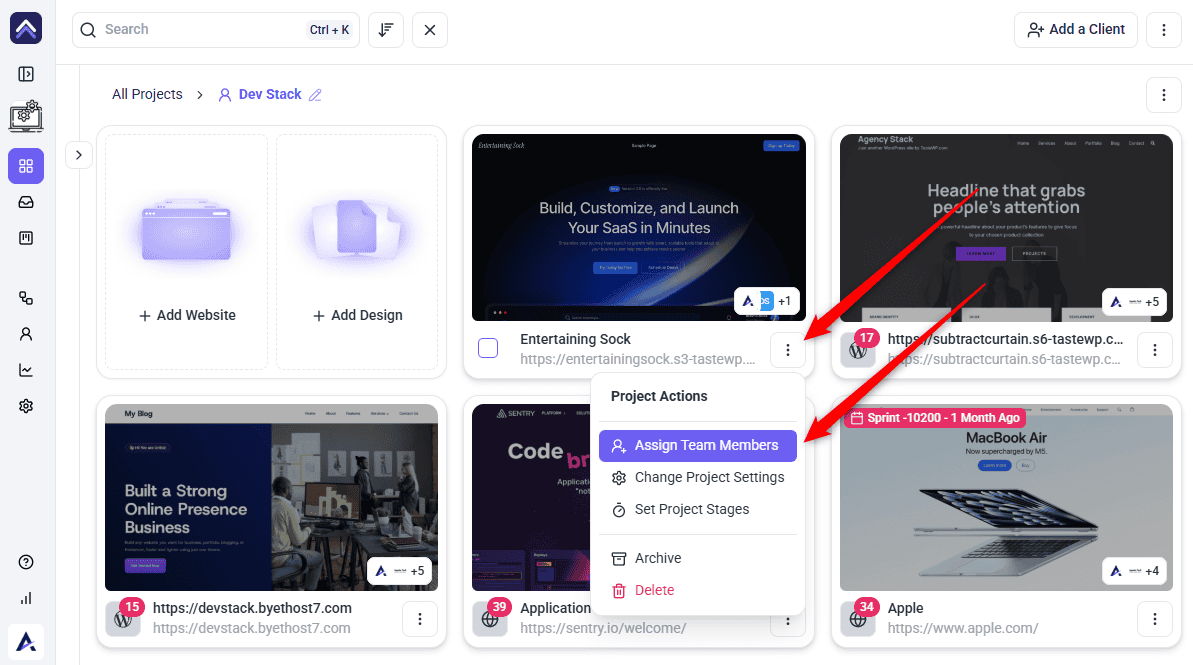
- Go to Projects and find the project.
- Open its Project Actions menu.
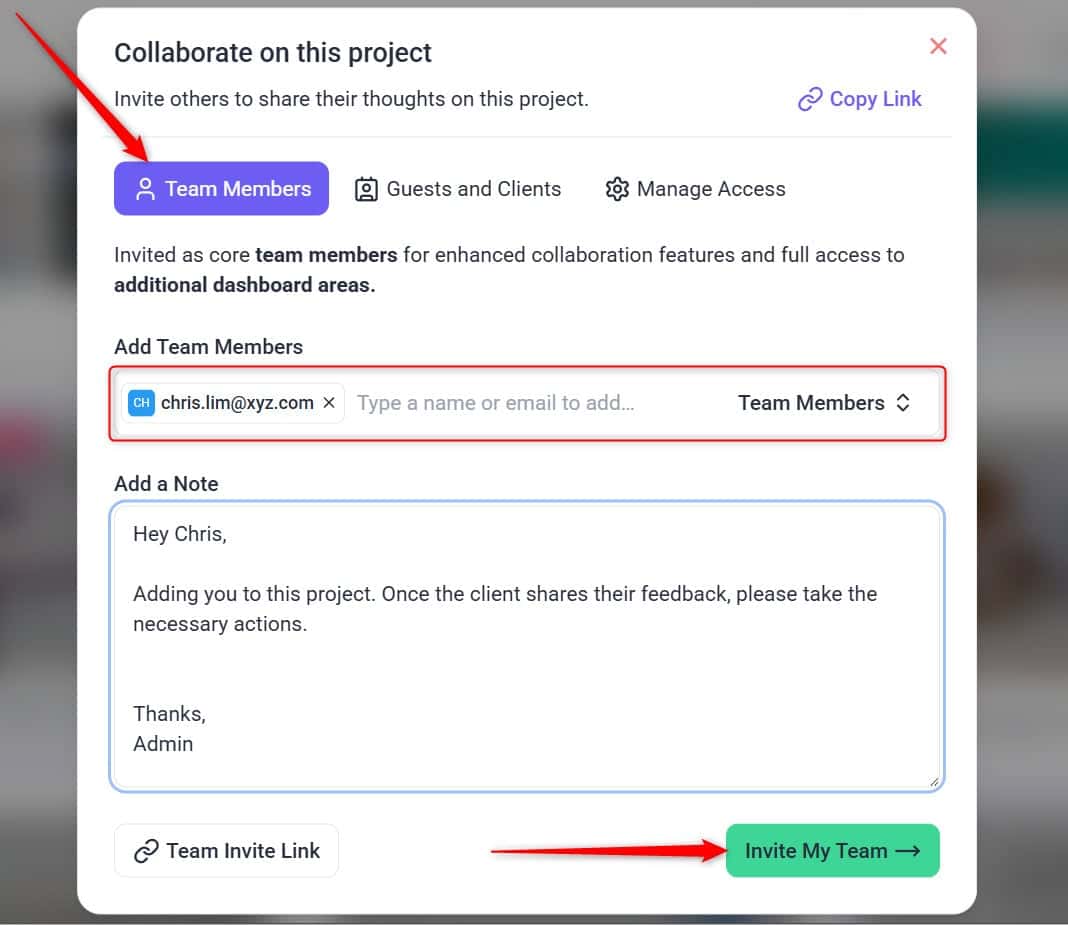
- Select Assign Team Members. The share panel opens on its Team Members tab.
- Add the people who should work on this project, typing a name or email to add each one.
- Confirm. They now see the project on their own Projects screen and can be assigned its tasks, and their avatars appear on the project card.
Assigning a Task
Task assignment is where accountability lives. Each task has one responsible person — not a list — so there is never a question of who is meant to be doing it.
Instructions:
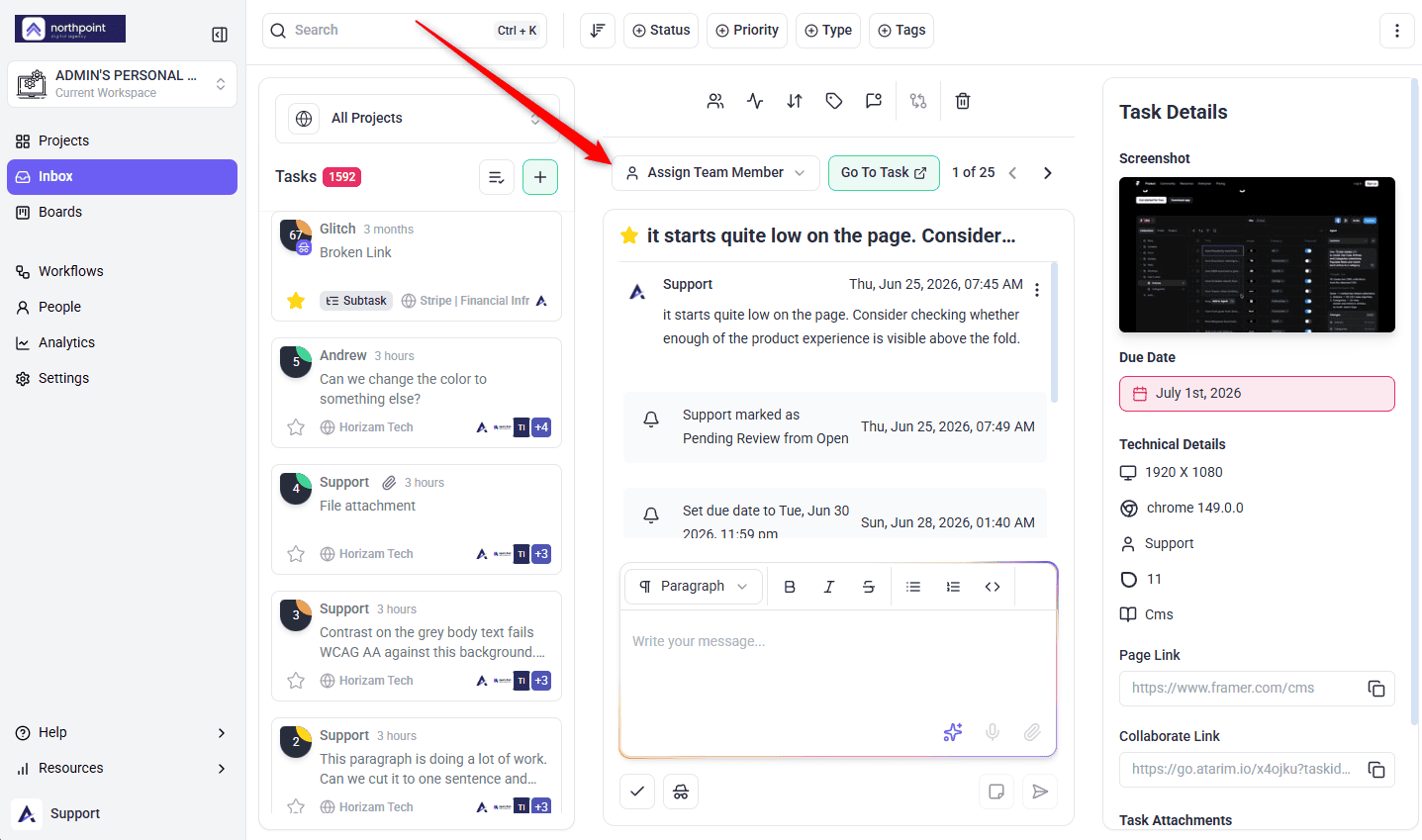
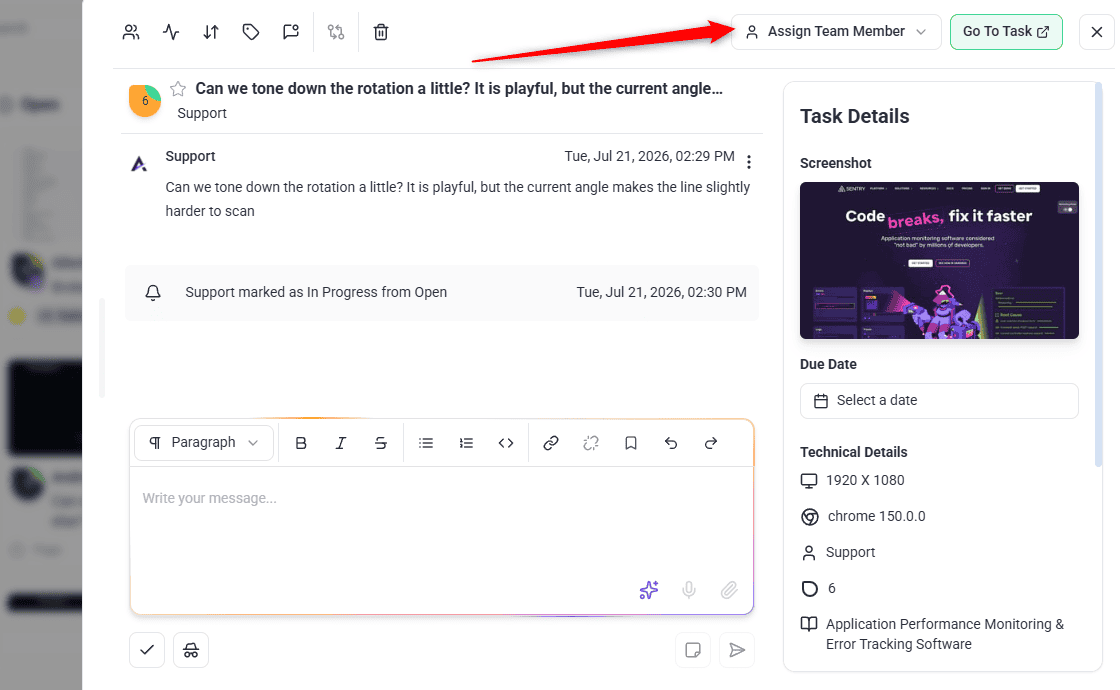
- Open the task from Inbox, Boards, or Collaborate.
- Find the Assign Team Member control. It prompts you to select a team member to assign.
- Search for the person and select them. The search field narrows the list, which matters once your workspace has more than a handful of people.
- To remove them, use Unassign. The task returns to having no responsible person.
Assigning in Bulk
Handing out work one task at a time gets slow after a client review drops forty items on you. There are three ways to work faster, and it is worth knowing which one applies to what.
Bulk Access: Assign a Folder
The most effective bulk action in Atarim is folder assignment, because it covers projects you have not created yet.
Instructions:
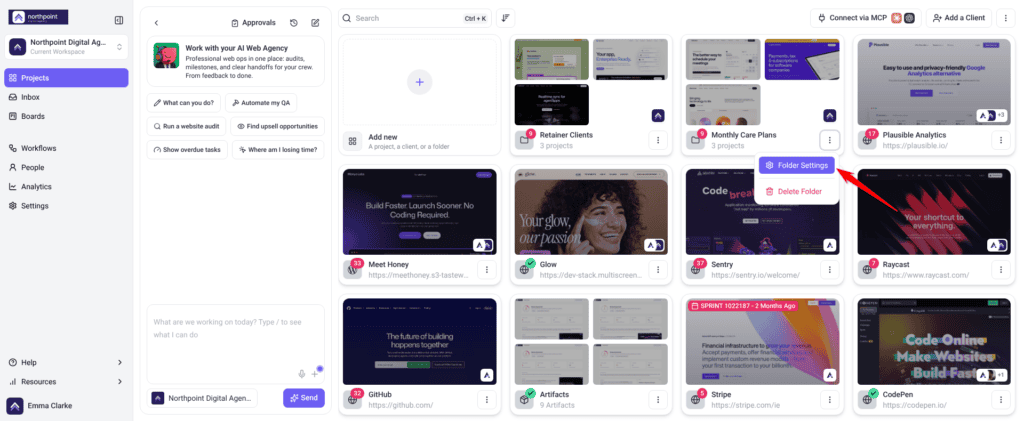
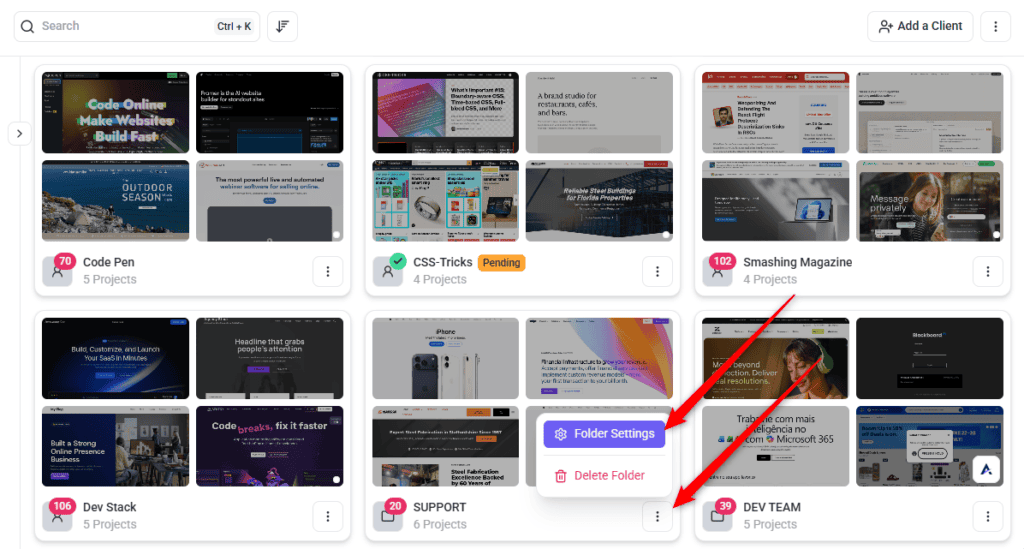
- Open the folder’s ⋮ menu and select Folder Settings.
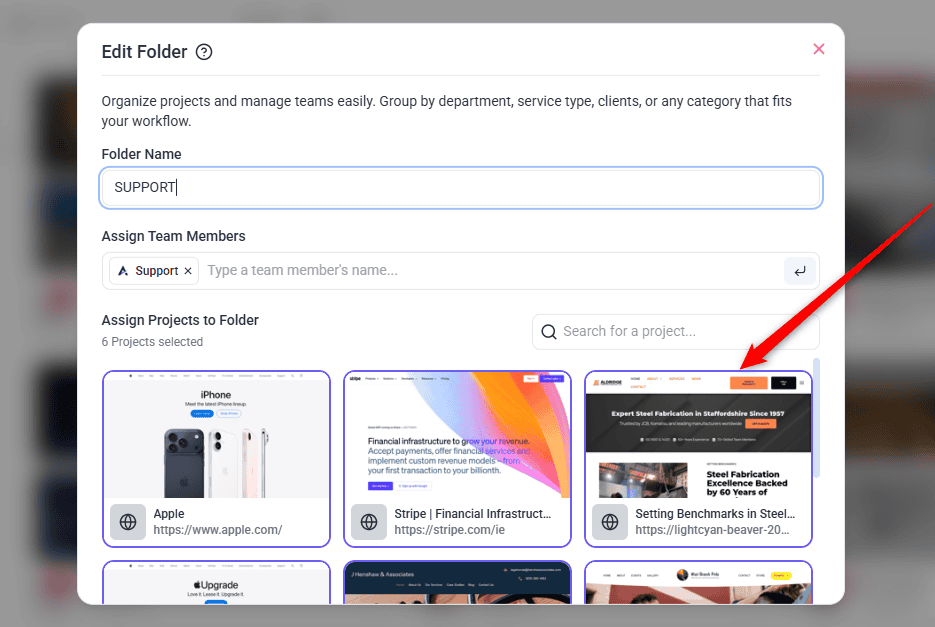
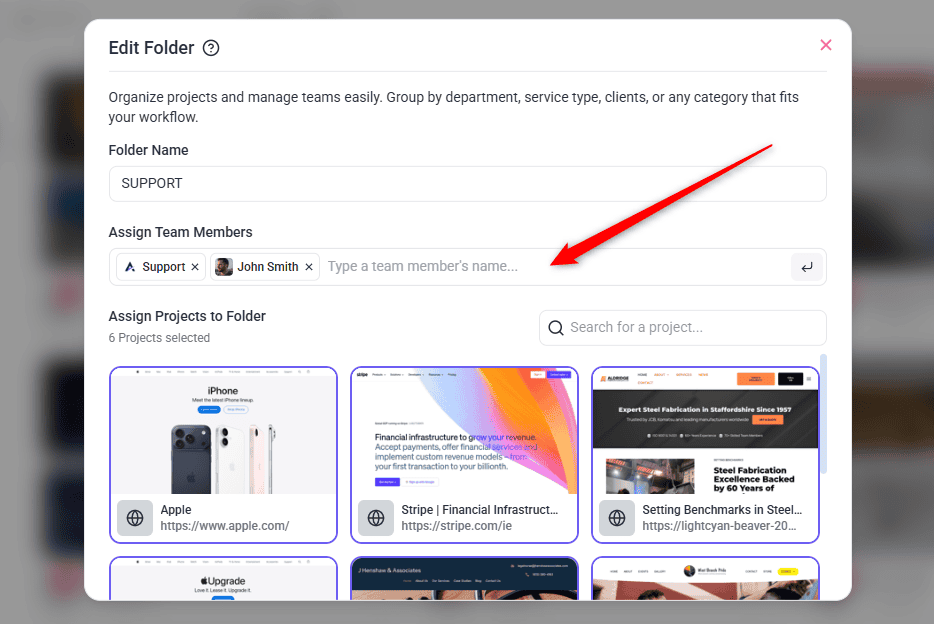
- Under Assign Team Members, type a name and press Enter. Add as many people as you need, one after another, without leaving the field.
- Select Save Changes. Everyone added now has access to every project in the folder — and to any project filed into it later.
Bulk Notify: From Boards
You cannot assign a batch of tasks in one action, but you can add people to be notified on a batch — which is the right move when a group needs visibility of a whole round of feedback.
Instructions:
- Open Boards and hover a task card to reveal its checkbox.
- Select the tasks you want, or use Select all visible tasks to take everything on screen after filters.
- Use the notify control on the bulk toolbar and choose the people. They are added to every selected task at once. Pick a single project first. On All Projects the control is greyed out.
- Select Deselect all tasks when you are finished.
Bulk Ownership: Use a Workflow
Because ownership is set one task at a time, the way to handle it at volume is to stop doing it by hand.
Instructions:
- Create a workflow triggered on Task added.
- Add a Change task assignee step naming the person who owns that account.
- Attach it to that client’s projects and switch it on. Every task raised on those projects is assigned as it arrives, so a review round lands already distributed.
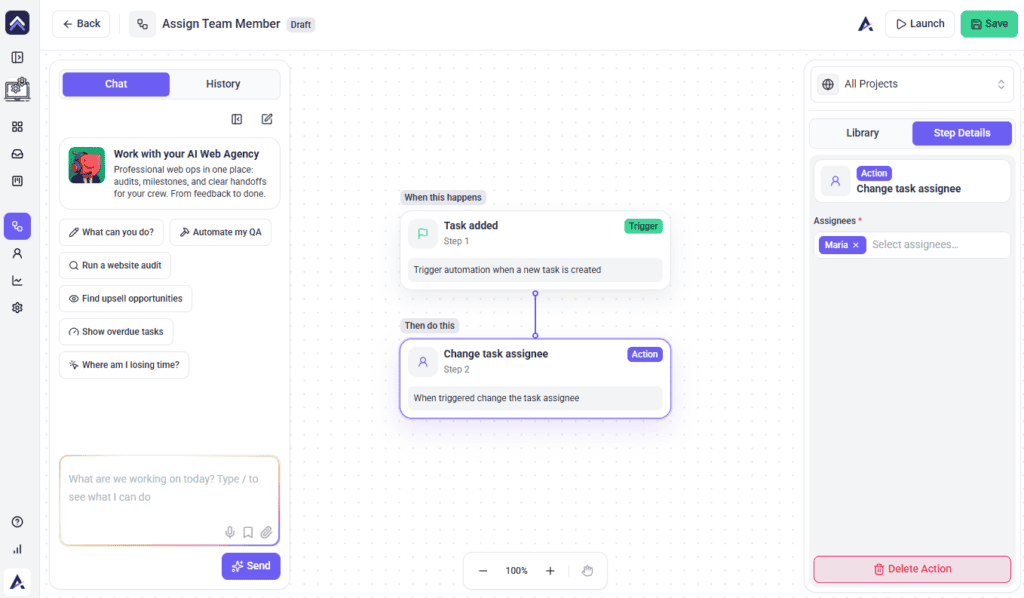
| You want to… | Do this |
|---|---|
| Give a team access to a whole client account | Assign them to the folder. |
| Give one person access to one project | Assign them to the project. |
| Keep a group informed about a batch of tasks | Bulk notify from Boards. |
| Own forty tasks that all go to the same person | A workflow with Change task assignee. |
| Distribute forty tasks across four people | One at a time — that is a judgement per task. |
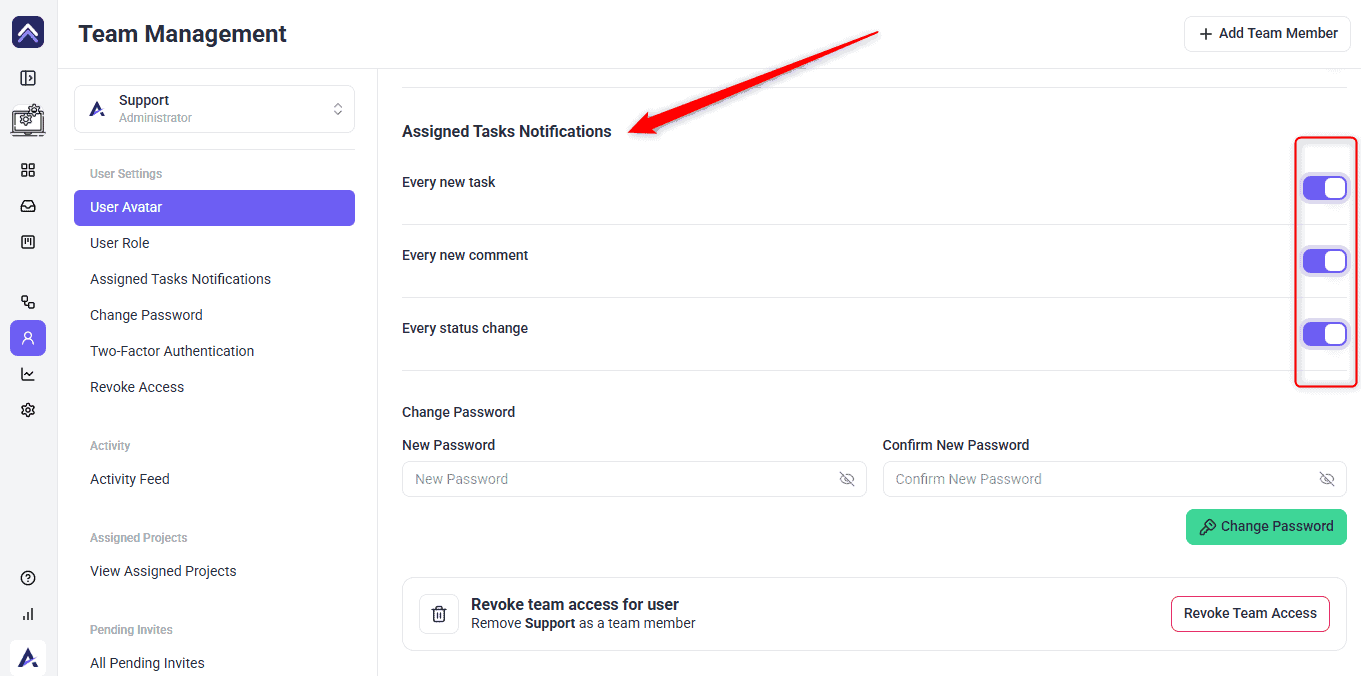
Assigning Is Not Notifying
This is the distinction people most often get wrong, and getting it right is what keeps a task list meaningful.
| Assigning | Notifying | |
|---|---|---|
| How many people | One — the responsible person. | As many as you like. |
| What it says | “You are doing this.” | “You should know about this.” |
| Effect on their list | They can pull it up with Assigned To Me in Collaborate, or the Assigned to filter in the Inbox and on Boards. | They receive updates, but do not own it. |
| Use for | The person who will do the work. | A lead, a client-facing manager, anyone who needs visibility. |
Assigning Automatically
If assignment follows a predictable rule, a workflow can do it rather than a person remembering to.
Instructions:
- Go to Workflows and create one.
- Choose a trigger — Task added or Task comment added are the usual ones.
- Add a Change task assignee step and pick the person. Every task matching the trigger is assigned automatically, with no credit cost for the step itself. Each run still costs the base 10 credits.
- Attach the workflow to the relevant projects and switch it on.
Who Can Be Assigned
Assignment is for your own team. External people participate differently.
| Who | Can be assigned work |
|---|---|
| Administrators | Yes. |
| Team members | Yes, on the projects they have access to. |
| Collaborators and clients | No — they give feedback and approve work rather than being assigned it. |
Benefits of Assigning Properly
| Benefit | In practice |
|---|---|
| Nothing sits unowned | Every task has a name against it, so work does not wait for someone to notice it. |
| People can find their own work | Assigned To Me in Collaborate, or the Assigned to filter in the Inbox and on Boards, answers “what am I doing today” without a meeting. |
| Workload is visible | Filtering by person shows who is overloaded before it becomes a problem. |
| Access stays tidy | Assigning at folder level means people see the accounts they work on, not everything. |
| Handover is simple | Reassigning a task moves ownership and its whole history with it. |
| Onboarding is one action | A new starter added to a folder gets every project in it, now and in future. |
Example Use Cases
| Situation | What to do |
|---|---|
| A new designer joins the agency | Assign them to the folders for the accounts they will work on. Every project inside is covered, including future ones. |
| A freelancer for one project | Assign them to that project only, and remove them when it ends. |
| A batch of client feedback arrives | Work through the board assigning each task, so the round is distributed before anyone starts. |
| One client always goes to the same person | Build a workflow that assigns every new task on those projects to them automatically. |
| Someone goes on leave | Filter by Assigned To for that person and reassign what cannot wait. |
| A manager needs visibility, not ownership | Add them to the notified people rather than assigning the task to them. |
| A whole round of feedback needs watching | Select the tasks on Boards and bulk notify the account lead. |
| Forty tasks all belong to one person | Build a workflow rather than assigning them by hand. It handles the next forty too. |
Known Limitations
- A task has one responsible person. Use notifications for everyone else who needs to know.
- Only people assigned to the project appear in the task assignee list.
- Collaborators and clients cannot be assigned tasks.
- Project assignment does not assign existing tasks — it grants access, and tasks are still assigned individually.
- Assignment is per workspace, so someone must be in the workspace before they can be assigned anything in it.
- There is no bulk assign. Status, priority, tags, notified people, pinning, integrations and delete can be applied to a selection; the responsible person and the internal setting cannot.
FAQs
Can I assign a task to more than one person?
No. A task has one responsible person. Add anyone else to the notified people so they get updates without owning it.
What is the difference between assigning a project and assigning a task?
Assigning a project grants access — who can reach the work. Assigning a task sets ownership — who is doing it.
Why can I not assign a task to someone?
They are probably not assigned to that project. Add them to the project, or to the folder it belongs to.
Can clients be assigned tasks?
No. Collaborators and clients leave feedback and approve pages, but work is assigned to your team.
Is there a quicker way than assigning project by project?
Yes. Assign people to a folder and they get access to every project in it, including ones added later.
Can assignment happen automatically?
Yes. A workflow with a Change task assignee step can assign every task matching a trigger.
Can I assign a batch of tasks at once?
Not directly — the bulk toolbar does not include the responsible person. Use a workflow where the owner is always the same, or assign individually where it is a judgement per task. You can bulk notify people across a selection.
What is the quickest way to onboard someone to a client?
Assign them to that client’s folder. They get every project in it, including any added later.
How do I see everything assigned to me?
It depends where you are working. Collaborate and the designs sidebar each have an Assigned To Me filter. In the Inbox and on Boards, open the filters and set Assigned to to yourself — that filter only appears once you have selected a single project, so on the All Projects view you will need to pick a project first.
Common issues
- Someone is missing from the assignee list — they are not assigned to the project. Add them to it, or to the folder it sits in.
- “Failed to update responsible team member” — try again. If it persists, check they still have access to that project.
- “Failed to unassign responsible team member” — reload and try again. The task keeps its current assignee until it succeeds.
- A client cannot be assigned a task — expected. Collaborators and clients give feedback rather than being assigned work.
- Someone cannot see a project you assigned them to — check they are in the right workspace, and that the assignment saved.
- You cannot find a bulk assign control — there is not one. Use a workflow for predictable routing, or assign individually.
- You want several people on one task — assign one and notify the rest. Only one person can be responsible.
- Assign Team Members is missing from the menu — your role does not include it. Team Members don’t have it by default, and it isn’t set in Settings → Workspace Permissions, so ask an administrator about your role.
Conclusion
Keep the two questions separate and assignment stays simple. Access is granted at folder level and inherited by everything inside; ownership is set task by task, one person at a time. Everyone else who needs to know gets notified rather than assigned — which is what keeps a name against a task meaning something.
Roles decide what someone can do once they have access. Explore User Roles And Permissions
Tips & best practices
- Assign access at folder level and ownership at task level. Project-level assignment is for exceptions.
- Notify rather than assign when someone needs visibility but not responsibility.
- Filter for unassigned tasks regularly — those are the ones that sit for weeks.
- Automate the predictable routing so nothing arrives unowned. There is no bulk assign, so a workflow is the volume answer.
- Use bulk notify for visibility across a batch, and keep ownership one task at a time.
- Filter before using Select all visible tasks — the selection follows your filters.
- Check workload by person before distributing a new round of feedback.
- Reassign rather than recreate when work changes hands — the history goes with it.